Guest blog post by our top-notch Discord member PippoDJ68. We are very grateful for his contribution. Thanks Pippo!
As you may know PandoryDX adds several new emulation cores to those provided by default with the Pandora DX (you can find these in the /pandory/cores folder of your card).
In this FAQ I’ll try to cover the potential of the MAME2003+ core and how it can be used to further customise your Pandora DX arcade collection.
Main ingredients:
- 1 Pandora box in the DX series
- 1 PandoryDX successfully installed on it
- 1 Notepad++ text editor
- 1 USB keyboard
- 1 backup of your original microSD or USB drive stored safely.
How to enable a game to use the MAME2003+ core
There are three possible scenarios:
The ROM is already among the stock ROMs AND it’s supported by the MAME2003 plus core
This is the easiest situation and Pandory makes it incredibly simple.
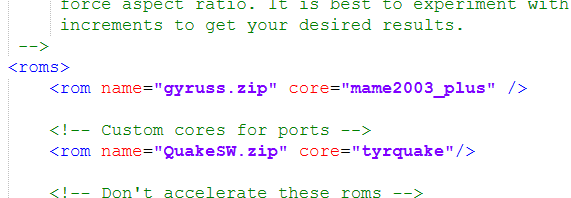
For example, if you want to run Gyruss (gyruss.zip) under the MAME2003+ core:
simply add the following line to the <roms> section of the pandory.xml file:<rom name="gyruss.zip" core="mame2003_plus"/>
The ROM is already among the stock ROMs, but it’s NOT supported by the MAME2003 plus core
You know this is the case because you did the above, but the game simply won’t start.
So you need to find a compatible version of the ROM.
I can’t tell you exactly where to find the ROMs on the web, but you may search for MAME 2003 plus non merged ROMs. MAME 0.78 non merged ROMs should also work, just make sure they are of the non-merged type.
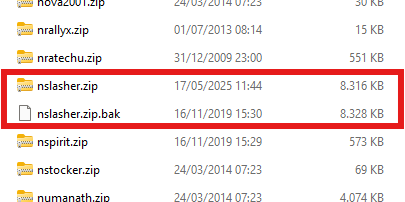
You can then back up the original ROM in the roms folder on your Pandora card (rename it to .bak) and replace it with the new one.
The ROM is not in the stock ROMs
First of all you have to make sure that the game is listed in the fba2012.txt or mame2003.txt files at the root of your card: otherwise it will not be recognised by the Pandora menu (even though the ROM is supported by the MAME2003+ core).
In this case repeat the same steps as above, but this time put the new ROM into the roms_mame2003 folder of your card.
NOTE: this currently does not work for the DX models with more than 5000 games (I’m actually the lucky
\owner of a DX5000 family that doesn’t work either, but it appears to be a rare case 🙄 ).
OK I have my game running in MAME2003 plus. Now what?
At this point some of the benefits are already set, like the automatic generation of the hiscore.dat (to automatically save the game’s high scores).
But you can now plug the USB keyboard into one of the free USB ports of the Pandora.
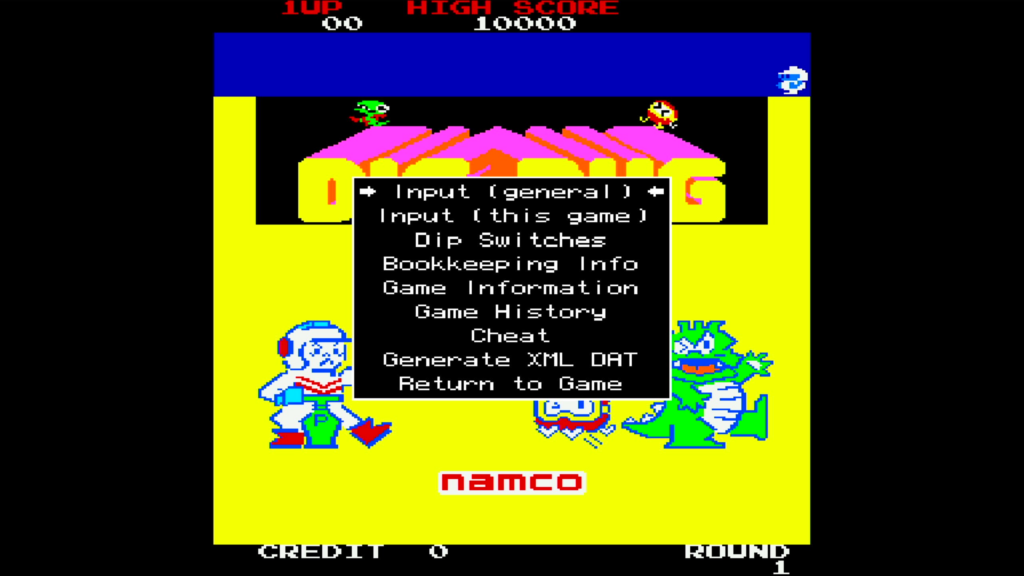
While in the game, press the “Q” key on the keyboard to open the MAME menu.
Use the arrow keys to navigate the menu and press the “C” key to confirm selections.
Remapping controls
Now that you have your game running in MAME2003+, you can choose the Input (general) or Input (this game) menu items to remap your buttons the way you like in a very simple way.
Input (general)
What you change here will affect all the games you’ve assigned to the MAME2003+ core: your settings are saved in a default.cfg file on your card and retrieved the next time you play any MAME2003+ game.
Input (this game)
What you change here will affect only the game you’re currently in: your settings are saved in a .cfg file on your card and retrieved the next time you play the same game.
NOTE: these .cfg settings have priority over the default.cfg seen above.
How to remap a control
Very simple: select the input you want to change, press the “C” button and then press the button you want to assign to that function.
- To assign more than one button to the same function: just press the “C” button again followed by the new button; it will be added to the previous choice.
- To restore the default setting of a function press the “C” button once and, while in editing mode, press “C” again twice quickly.
- To remove a function completely press the “C” button once and, while in editing mode, press the Delete keyboard button twice quickly.
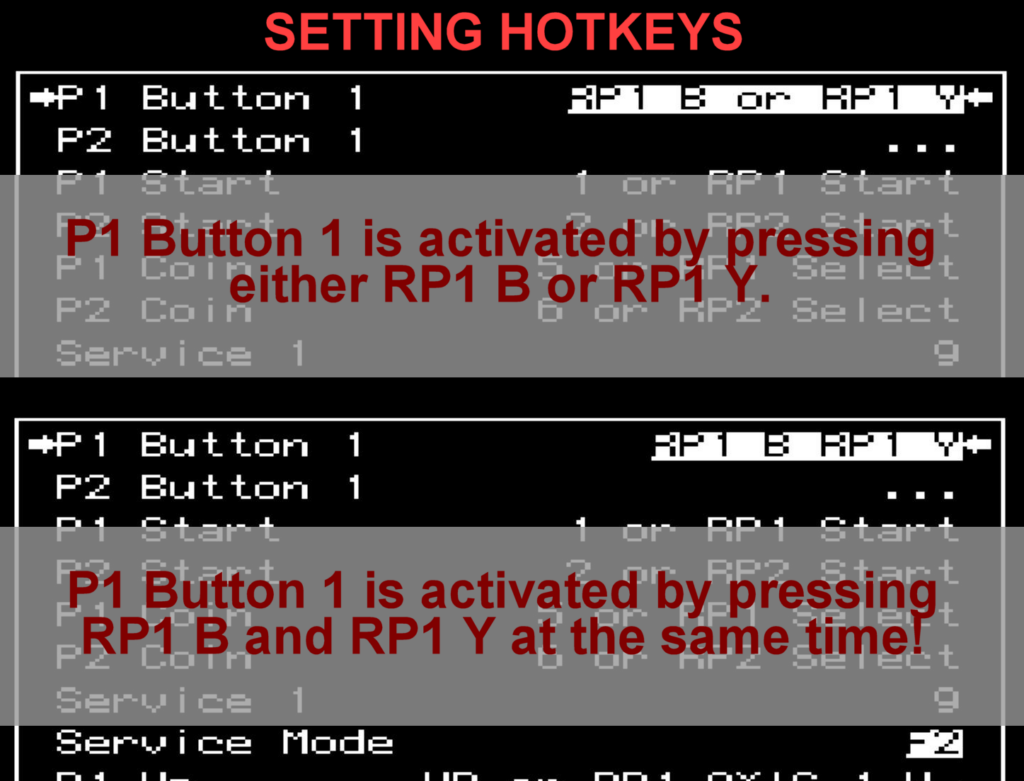
- 🔥HOT TIP🔥: Sometimes the available buttons are not enough to cover all possible functions: you can overcome this by creating “hotkey” combinations that require pressing multiple buttons at the same time. To create an hotkey combination press the “C” button once and, while in editing mode, press two or more buttons at the same time!
- 🔥HOT TIP 2🔥: You may want to assign an hotkey combination to Input (general) > Config Menu so that you don’t need anymore a keyboard plugged in to enter the MAME menu the next time!
Tinkering with DIP switches
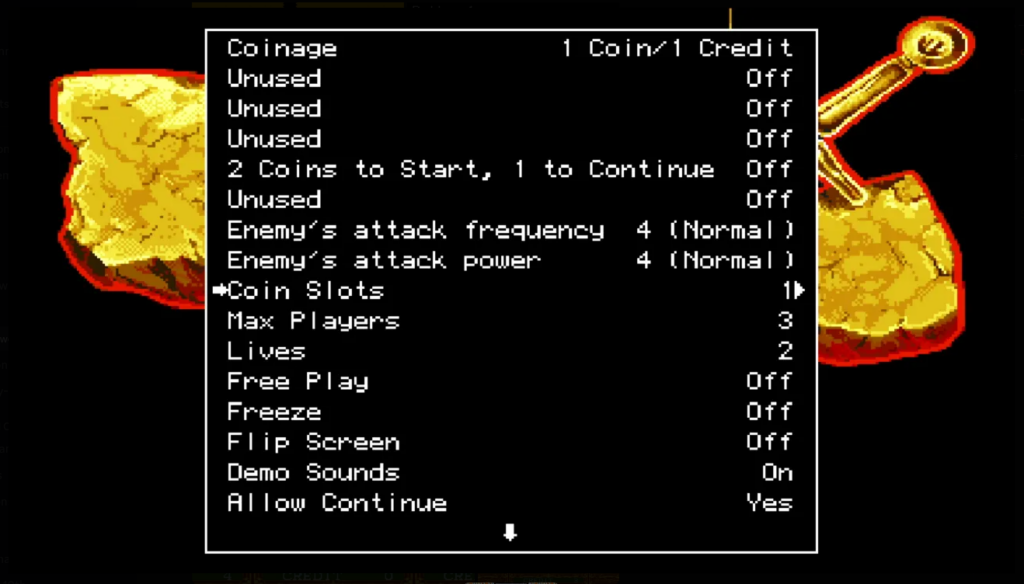
The MAME2003+ menu allows you to adjust the emulated hardware DIP switches of the original arcade game.
You can set amazing options, such as the difficulty level and number of lives, as well as enabling continues.
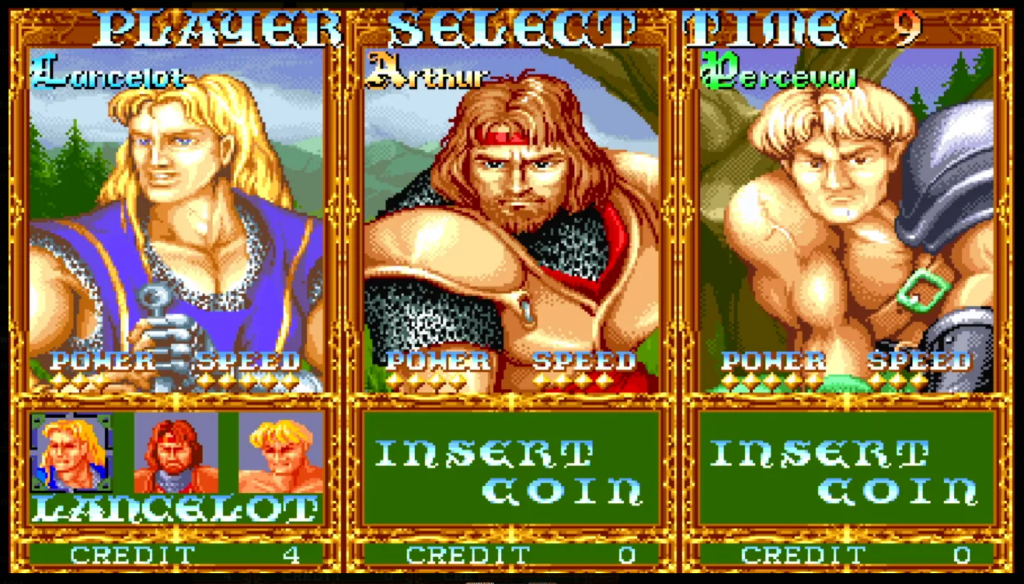
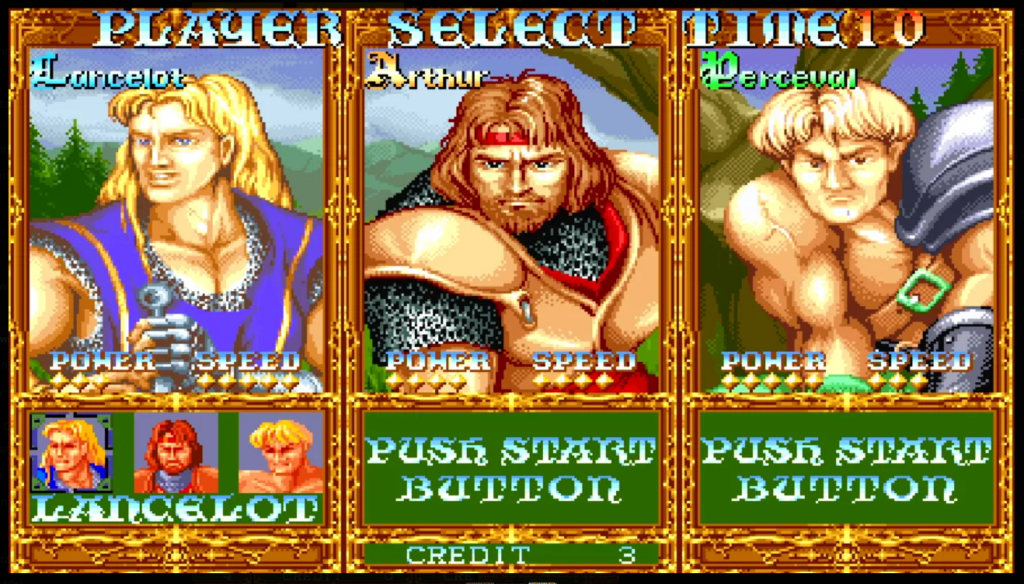
For example, Knights of the Round is set by default to work with an hardware with three coin slots (one per player). This means that any additional credits go to player one, which makes it impossible to play in cooperative mode. You can overcome this issue by setting the Coin slots DIP switch to 1.
Enabling Cheats
The MAME2003+ core also unlocks the powerful cheat engine of MAME: just enter the menu and select Cheats.
You can search for cheats on your own or maybe use the comprehensive MAME cheat database already made by wonderful people out there: just download the cheat.dat file from here: https://github.com/libretro/mame2003-libretro/blob/master/metadata/cheat.dat and put it into the \roms_pandory\bios\mame2003-plus folder of your card.
⚠️WARNING⚠️ It is strictly prohibited to use cheats when taking part in the Sweaty Hands Challenges! 😉
That’s all folks!
This information is based on my own findings through several trials and errors, but also collected from posts on this Discord by many great people (a special mention goes to @SteveLab and his “Rom Discussion” channel). I would like to thank all of them, together with the Pandory Team, for making such a wonderful tool to power up our Pandoras.
Have great retro-fun! 😎