At TeamPandory, we’ve made it incredibly easy to add normal console ROMs to your Pandora Games 3D, 3D+, EX2, and similar models using PandoryTool. Most ROMs are a simple drag-and-drop process, but CD-based games, such as those using BIN/CUE/GDI, files require a few extra steps to install correctly.
Don’t worry though! PandoryTool still makes this possible, and in a future version, we’re planning to make the process even simpler. In the meantime, here’s a detailed, step-by-step guide so you can enjoy CD-based games. We’ll use Thunder Storm & Road Blaster for PS1 as an example.
Tip: For Dreamcast games, which use GDI format instead of BIN/CUE, the process works almost the same. The GDI file can be edited just like a CUE file to ensure all tracks are referenced correctly.
Step 1: Rename the BIN File(s)
Take the BIN file for your game. For example:
Thunder Storm & Road Blaster (Japan) (Disc 2) (Road Blaster).bin
Rename it to something simple and unique, like:
roadblaster.bin
Tip: Avoid generic names like
track1.bin. Each file on a Pandora must have a unique name. Using descriptive names prevents conflicts if you have multiple CD-based games installed.
If your game has multiple BIN files, give each one a unique name, such as:
roadblaster1.bin
roadblaster2.bin
Step 2: Edit the CUE (or GDI) File
Open the corresponding CUE file with Notepad++ (not the standard Notepad). Locate the line referencing each BIN file. For example:
FILE "Thunder Storm & Road Blaster (Japan) (Disc 2) (Road Blaster).bin" BINARY
Change it to match your renamed BIN file(s):
FILE "roadblaster.bin" BINARY
- If your game has multiple BIN files, make sure each one is correctly referenced in the CUE file.
- For Dreamcast games, open the GDI file instead, and update the track lines to reference the renamed files exactly, just like a CUE file.
Save the file after editing.
Step 3: Add Only the CUE (or GDI) File to PandoryTool
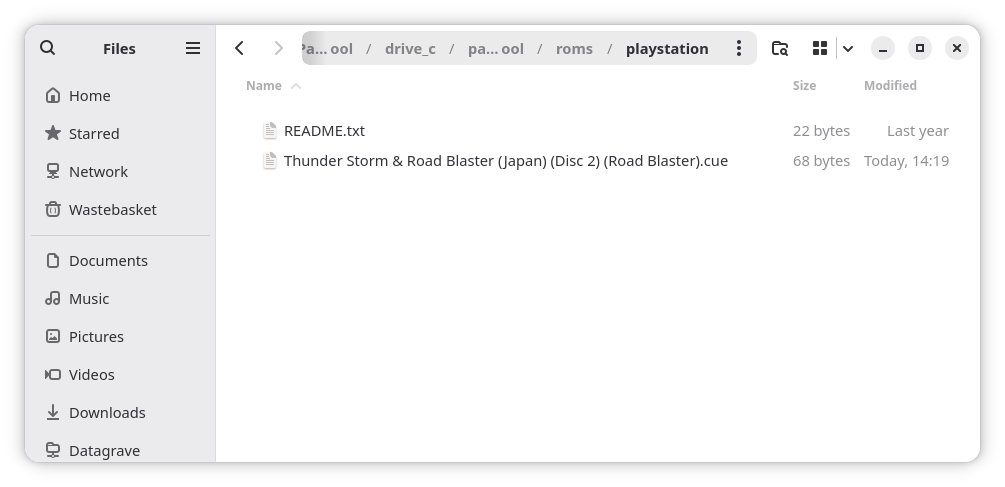
Place only the CUE or GDI file into the PandoryTool ROMs folder for the respective system:
C:\pandorytool\roms\playstation
or for Dreamcast:
C:\pandorytool\roms\dreamcast
Do not add the BIN files yet. We’ll do that after running pandory.
Step 4: Run PandoryTool to Add the Game
Open a command prompt and run:
pandory roms add X: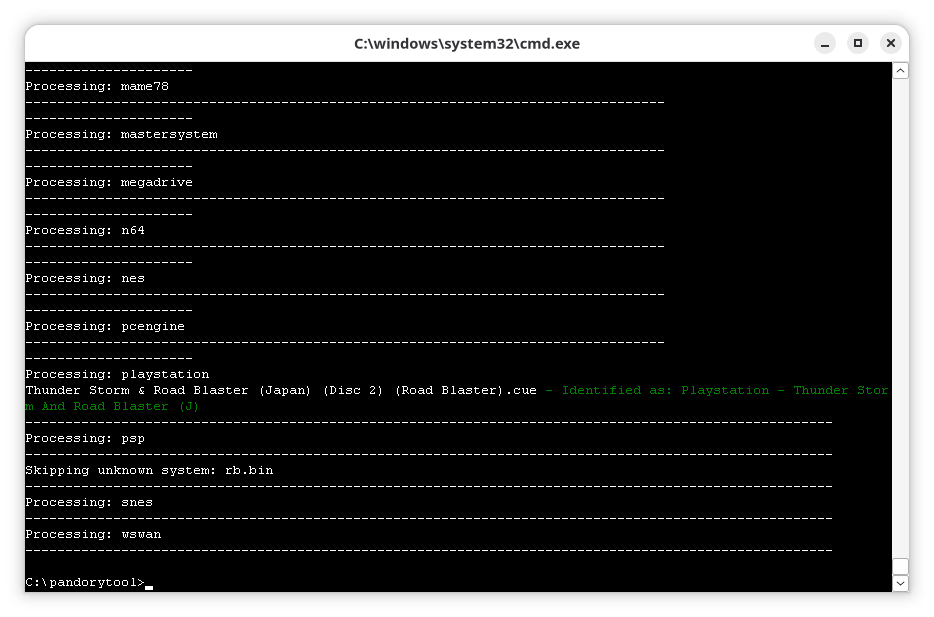
Replace X: with the drive letter of your USB stick. PandoryTool will create a folder called mcgames on your USB stick and generate a folder with a random-looking name, such as:
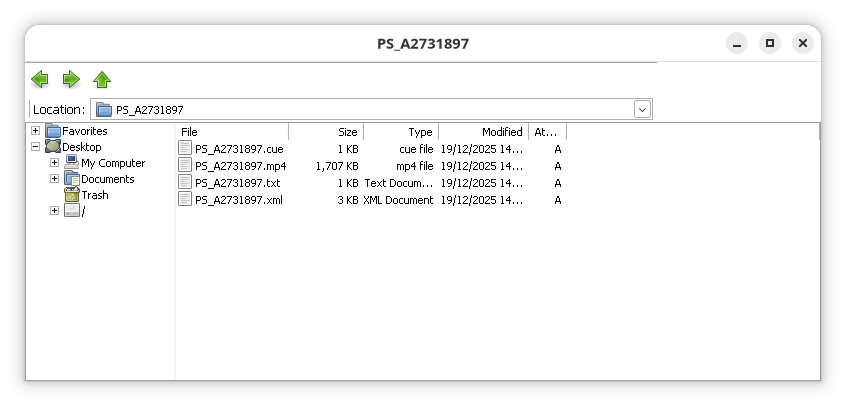
PS_A2731897
This is where your game files will live.
Step 5: Copy the BIN File(s) to the Game Folder
Inside the newly created folder (e.g., PS_A2731897), copy your renamed BIN file(s). Keep the names exactly as you set them in Step 1.
Tip for multiple BIN files: If your game has more than one BIN, make sure each file has a unique name, like
roadblaster1.bin,roadblaster2.bin. Each file will need a corresponding<rom>line in the XML.
Step 6: Edit the XML File
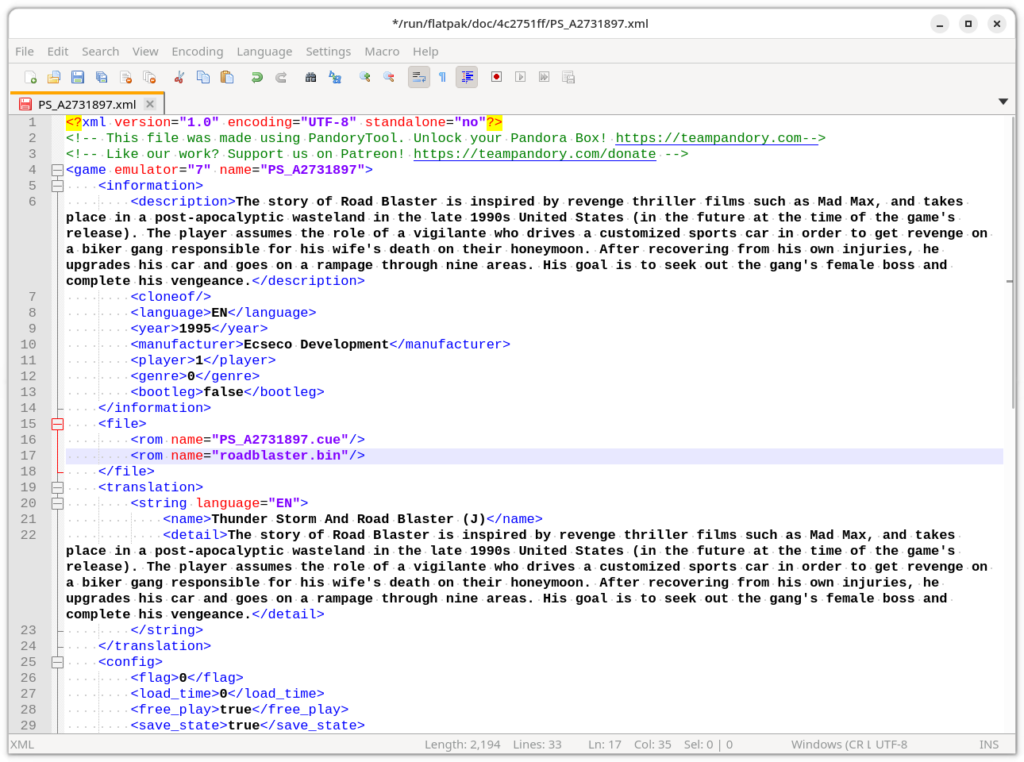
In the same folder, you’ll find a file named something like PS_A2731897.xml. Open it with Notepad++ and locate the line for the CUE (or GDI) file:
<rom name="PS_A2731897.cue"/>- If your game has only one BIN file, add a single line below it:
<rom name="PS_A2731897.cue"/>
<rom name="roadblaster.bin"/>
- If your game has multiple BIN files, add a
<rom>entry for each BIN file:
<rom name="PS_A2731897.cue"/>
<rom name="roadblaster1.bin"/>
<rom name="roadblaster2.bin"/>
Save the XML file. This step tells PandoryTool that your game has all the files needed for installation.
Step 7: Install the Game on Your Pandora
- If you’ve installed this game before, remove it first from the Pandora settings menu.
- Insert your USB stick into your Pandora.
- Start the installation as usual. PandoryTool will now install the CUE/GDI and all BIN file(s), giving you a fully playable game.
Tips and Best Practices
- Give your BIN files unique, descriptive names rather than generic ones like
track1.bin. - Ensure the CUE or GDI file references match your renamed BIN files exactly.
- For multi-BIN games, each BIN file must have its own
<rom>entry in the XML file. - Dreamcast GDI files can be edited the same way as CUE files to reference all tracks correctly.
Looking Ahead
We know this process can feel a bit technical, but it works reliably if you follow each step carefully. In a future version, we’ll make adding multi-file CD games as simple as adding normal ROMs, with no XML editing required.